Fine and Dandy
Fine and Dandy is an easy-to-use, well-being reporting and monitoring system for a daily status check on friends or loved ones.
New here? A short setup will guide you. You can tap Help at the bottom of the screen any time.
Help & Instructions
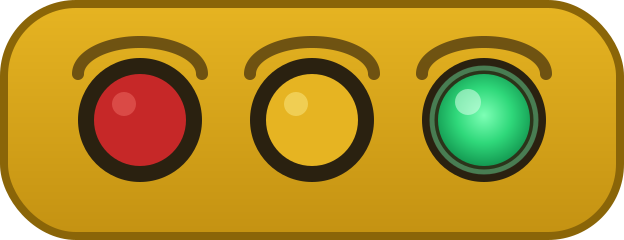
The instructions for Fine and Dandy are designed to help the user understand the settings, functions, and details on how to use the app.
What This App Is
Fine and Dandy is a private well-being status app that you share with people you choose. You check in with your well-being status. Your friend or loved-one can see how you’re doing with a simple glance on their computer, tablet, or cell phone in order to follow your well-being.
First Time Setup
- • The first time you open the app, a short setup asks for your name and your agreement to the Terms of Use. You can change everything later in Settings (bottom of the screen).
- • Enter your Display Name, Check-in Interval, (default every 24 hours), Daily Start Time, (default is 6:00 a.m.), and select your Time Zone. Under Well-being status light placement, choose where your well-being lights appear (auto clear side, middle-left/right, or a corner). Under Well-being status light window size, choose Small (default), Medium, or Large.
- • You can read the full Terms of Use any time from Settings.
- • Tap Save settings.
- • When you are ready to use the app and have already invited people to your contacts list, you can click on the Check In button and select the appropriate description of your well-being status, (Green, Yellow or Red). After you check in, the people on your contact list can see your light the next time they open Fine and Dandy.
Daily Check-In
- • Daily Check-In — Every day at the daily start time selected in Settings a pop-up window will open prompting you to check in with your well-being status. Once you have selected your well-being status the app will confirm your selection and exit the app. The people on your Contact List see your new light when they open the app.
- • Daily start time — The default time is set to 6:00 a.m.. A new check-in day begins. You may check in anytime after this. You may change the daily start time to match your daily routine.
- • Monitor view before check-in — At the daily start time, people on your contact list will see your status light as gray. The gray colored light simply indicates that you have not checked in for the day and is normal. When you check in, their light changes to the color that you selected as your well-being status for that day. If you still have not checked in 12 hours after start time, your light shows as flashing yellow for them. (No text or phone call is sent.)
- • Yellow flash (automatic) — Your light flashes yellow if you have not checked in within 12 hours of your daily start time. People who look at your light can see it and check on you. The app does not text or call anyone about it.
- • Well-being lights — When Fine and Dandy is opened, a window of each of your active contacts appears on your desktop automatically which shows their current well-being status. You may press the Well-being Status Lights button from within the app to view the well-being status of your active contacts from within the app also.
Check-In Well-Being Status
Bottom Buttons (Every Main Screen)
- • Check In — The Check In screen allows you to establish your well-being status at any time. This allows you to enter your well-being status more often than every 24 hours in the event that you have been hospitalized or are recuperating from a surgical procedure. This allows friends or loved ones to monitor your well-being more frequently throughout the day.
- • Settings — display name, check-in interval, daily start time, time zone, Disclaimer/Terms, well-being status light placement, and well-being status light window size.
- • Help — Open these instructions anytime.
- • Status Lights — Allows you to monitor the well-being status of friends or loved ones that are active on your Contact List.
- • Contacts — Allows you to view friends or loved ones that are currently on your active Contact List. The Add New Contact button opens a screen that allows you to enter the name and email of any new contacts that you wish to invite. The Remove Contact button allows you to choose any contacts that you wish to remove from your active Contact List.
Fine and Dandy
Welcome To Fine and Dandy
Daily check-in day starts at 6:00 a.m. by default (changeable in Settings). Yellow flash alert is automatic 12 hours later if you have not checked in yet. See Instructions for details.
Fine and Dandy is a simple well-being reporting and monitoring app that allows people to have a simple daily well-being status check on friends or loved ones.
Fine and Dandy
Welcome To Fine and Dandy
Fine and Dandy is a simple well-being reporting and monitoring app that allows people to have a simple daily well-being status check on friends or loved ones.
Terms of Use
Disclaimer/Terms of Use
Please read this document carefully. You must read and agree to the terms of use before using this application.
1. What Fine and Dandy Is
Fine and Dandy is a simple well-being reporting and monitoring app. It lets people share a basic well-being status (Green / Yellow / Red) with friends or loved ones they choose, and lets those people know how you are with a quick glance on the cell phone or computer desktop. The app also shows Gray when there is no check-in yet for the current day after the daily reset.
It is a status light that offers quick ease of mind without texting or making phone calls.
2. What Fine and Dandy Is Not
- • Not medical advice, diagnosis, treatment, or a medical device.
- • Not a 911 emergency service, and does not have any association with any emergency service. This app does not notify anyone of emergency situations that may arise and it is your responsibility to call 911 if you are in an emergency situation.
- • Not a location tracking service, GPS following, or surveillance device. The app does not track where you are. It keeps only what it needs to work: your display name, your check-ins, your settings, and the contacts you add (and, when online sharing is turned on, the email address you sign in with). See the Privacy Policy for details.
- • Not a guarantee that someone is safe or able to respond.
- • Not responsible for what anyone does after seeing a status light.
If someone may be in danger, call 911 (or your local emergency number) immediately.
3. Your Responsibilities
- • You choose who you invite and who can see your well-being status light.
- • If you monitor someone, their light is only the information they provide when they check in. It is not an ongoing or continuous monitor.
- • Always keep another way to reach important people. Technology can fail.
- • Do not use this app to harass, stalk, or control another person.
- • Only provide truthful information with regards to your well-being status.
4. Status Meanings
- • Green — I’m fine and dandy (I’m good).
- • Yellow — I’m okay, but let’s talk or text soon.
- • Red — I need some help. Please reach out. (If this is an actual emergency, call 911).
- • Yellow Flashing Light — If you have not checked in within twelve hours of the daily start time in your settings, your light flashes yellow for the people who can see it. This is a prompt for them to check on you. The app does not send a text, call, or message about it.
- • Gray — No check-in yet for the current day. After the daily reset time (default 6:00 a.m. in your settings time zone), lights return to gray until a new check-in. Gray is a waiting state, not a well-being status report like Green, Yellow, or Red.
5. Privacy
- • Privacy is built into the Fine and Dandy app. There are no location tracking, GPS, or any other items built into the app that would track a person's location and/or activities.
- • We do not sell your personal information for ads.
- • Only people you authorize should see your well-being light.
- • Minimal technical data may be needed so a status can be delivered (for example link codes, status color, time, basic account details).
6. No Liability / You Will Not Hold Fine and Dandy Responsible
By agreeing to this Disclaimer / Terms of Use, you agree that you will not hold Fine and Dandy (including its owners, operators, developers, and service providers) responsible for any mishap, loss, injury, damage, delay, or outcome that may occur from:
- • Faulty use or misuse of the app.
- • Failure of the program, phones, networks, or notifications to work properly.
- • Missed, late, wrong, or undelivered status lights or alerts.
- • Decisions you or anyone else make after seeing (or not seeing) a status light.
- • Any other technical failure, outage, or human error related to use of the service.
The app is provided as is. Always keep another way to reach people who matter, and call 911 in an emergency. This plain-language section will be reviewed by an attorney before public launch.
7. By Tapping I Agree You Confirm That You Agree To The Following:
- • You have read the Disclaimer / Terms of Use and agree to the terms of use.
- • You understand this is a well-being tool only.
- • You understand that the app will NOT call 911 or notify anyone of an emergency situation.
- • You understand it is not a location tracker.
- • You will not hold Fine and Dandy, or any of its owners, developers, or employees, responsible for any mishaps or for any failure to notify others of your well-being arising from app failure, faulty use, hardware failure, user error, or any other factor contributing to the failure of the app.
- • You accept these terms for your use of the app.
Settings
Fine and Dandy App Settings
You may use the default settings or customize the settings to your liking.
Shorter interval (for example after a hospital stay). Pick one:
Default is every 24 hours. You can also check in anytime from Home.
Uses your selected time zone. Default day start is 6:00 a.m. The daily start time is customizable to meet your schedule. You can check in anytime that you want but if you do not check in within twelve hours of your daily start time, your light flashes yellow for your contacts so they know to check on you.
You and a friend or loved one can each share a light and monitor one another. Choose where the well-being lights appear on your screen — one window in one place, not scattered. Auto clear side uses your system setting (Mac → left, Windows → right). Or pick middle-left, middle-right, or a corner. Your last choice is remembered and used again the next time you open the app.
This only changes your monitor windows on this device. Family members each pick their own size. Small is the default. Choose Medium or Large if you want easier reading.
Settings Progress
(All items must be completed before sending an invitation to a contact/user)
Invite Permission
The invite feature is for owners of Fine and Dandy. Invited contacts still see the invite screens, but those controls stay unavailable until they have their own paid app.
Price: $4.99 per year for up to 5 people. Additional friends or loved ones may be added at a cost of $1 per person.
Device Connection
Check-ins save on this device. Multi-device cloud sync is paused while the server is offline. When cloud is turned back on, invited contacts can see each other’s lights across devices.
Add New Contact
Send An Invite
The invite feature is for the use of owners of the app. If you wish to invite others for your own use, get Fine and Dandy by tapping the button below.
Enter the person’s name and email address, then tap Send invite. Next you will copy a personal letter into your own email.
Or invite by phone instead
Invite Letter
Copy This Into Your Own Email
Your contact was saved as Pending. Copy the letter below (it includes a green light example inside the letter), paste it into your own Mail app, edit if you want, then send it from your address. They will not see these Copy buttons.
Friendly Letter
Tip: after you paste into Mail, the web link usually becomes tappable automatically.
Remove Contact
Choose Who To Remove
Tap one or more contacts to select them. Then tap Remove selected. You will confirm each person with a separate Yes or No.
Check In
How are you today?
YOUR CURRENT WELL-BEING STATUS
Not Checked In Yet
If this is an actual emergency, call 911.
Check-in Successful
Set Parameters
How this household’s well-being light works. Set by the person who lives alone.
What The Colors Mean
| Green | I’m fine and dandy. (Solid — they checked in.) |
|---|---|
| Yellow | I’m okay, but let’s talk or text soon. (Solid — they chose yellow.) |
| Yellow flash | Missed check-in — the light flashes yellow automatically 12 hours after day start if there is no check-in yet. Please check in on your friend or loved one. |
| Red | I need some help. Please reach out. (If this is an actual emergency, call 911). |
| Missed check-in | No check-in by the yellow flash time (default 6:00 p.m.) — the light flashes yellow. No text or call is sent. If emergency, call 911. |
This Household
What You Should Do
- • Green: Nothing required. Glance and go on with your day.
- • Yellow (solid): They’re okay, but want to talk or text soon — use your normal phone or messages.
- • Yellow (flashing): Missed check-in — the light flashes yellow automatically 12 hours after day start if there is no check-in yet. Please check in on your friend or loved one.
- • Red: Reach out. (If this is an actual emergency, call 911).
- • Gray: Not checked in yet today.
Well-Being Lights
Quiet glance. No popup spam. Click the menu-bar light for a quick status window.
—
Last check-in: Not yet
Real conversation stays in phone or text. This app is the light and the gentle nudge.
Status Lights
Well-Being Status Of Friends or Loved Ones
No one on your Contact List yet.
Contact List
Friends or Loved Ones Using The Fine and Dandy App With You
Active contacts have accepted your invite and joined Fine and Dandy. Pending contacts were invited but have not confirmed yet — they appear grayed out until they accept. When someone accepts, you receive a confirmation and they become Active.
The invite feature is for the use of owners of the app. If you wish to invite others for your own use, get Fine and Dandy by tapping the button below.